Writing for the web

Accessibility

Content should be easy to understand

Words have power, but only if they’re understood. Some users may be cognitively impaired from a temporary situation or permanent.

Few tips to make your content easier to read:

  • Short sentences
  • Clear structure
  • Words everyone understands (also avoid jargon)
  • Left align text only

If content requires reading skills above lower secondary education (around 9th grade), to help with understanding provide: [1]

  • A simpler version
  • A summary
  • A visual aid

Text color

Use default text style options when available as it represents Somfy’s Design official sets of colors. Respect ‘AA’ accessibility standards at minimum.


Possible text colors (common for B2C and B2B):

Smart Blue

#

25485A

Text colors

Dark Smart Blue

#

1E3A48

Usage

Example

Exemple

Exemple

Links

#

016B65

Exemple

Success

#

3F7E71

Exemple

Alert

#

BB2D46

Exemple

Light Smart Blue

#

667983

Exemple

Normal text for B2C

Normal text for B2B

Text links

Success color

Error color and Sales color

White

#

FFFFFF

Seconday text

Alternating colors

Exemple

Checking contrast

As Somfy is legally required to be compliant with the “AA” accessibility standard, it is important to check the contrast when using a custom text and background color combinations.

According to WCAG 2.0 Level AA guidelines:

  • The contrast ratio must be at least 4.5:1 for normal text.
  • For large text, the minimum contrast ratio is 3:1.
  • A higher contrast ratio is always preferred for better accessibility.


Use the online tool linked below to verify your color combinations. Simply input a foreground and background color, and ensure that the results meet the requirements in the AA column.

Accessibility checking tool ( https://accessibleweb.com/color-contrast-checker/ )

Try this
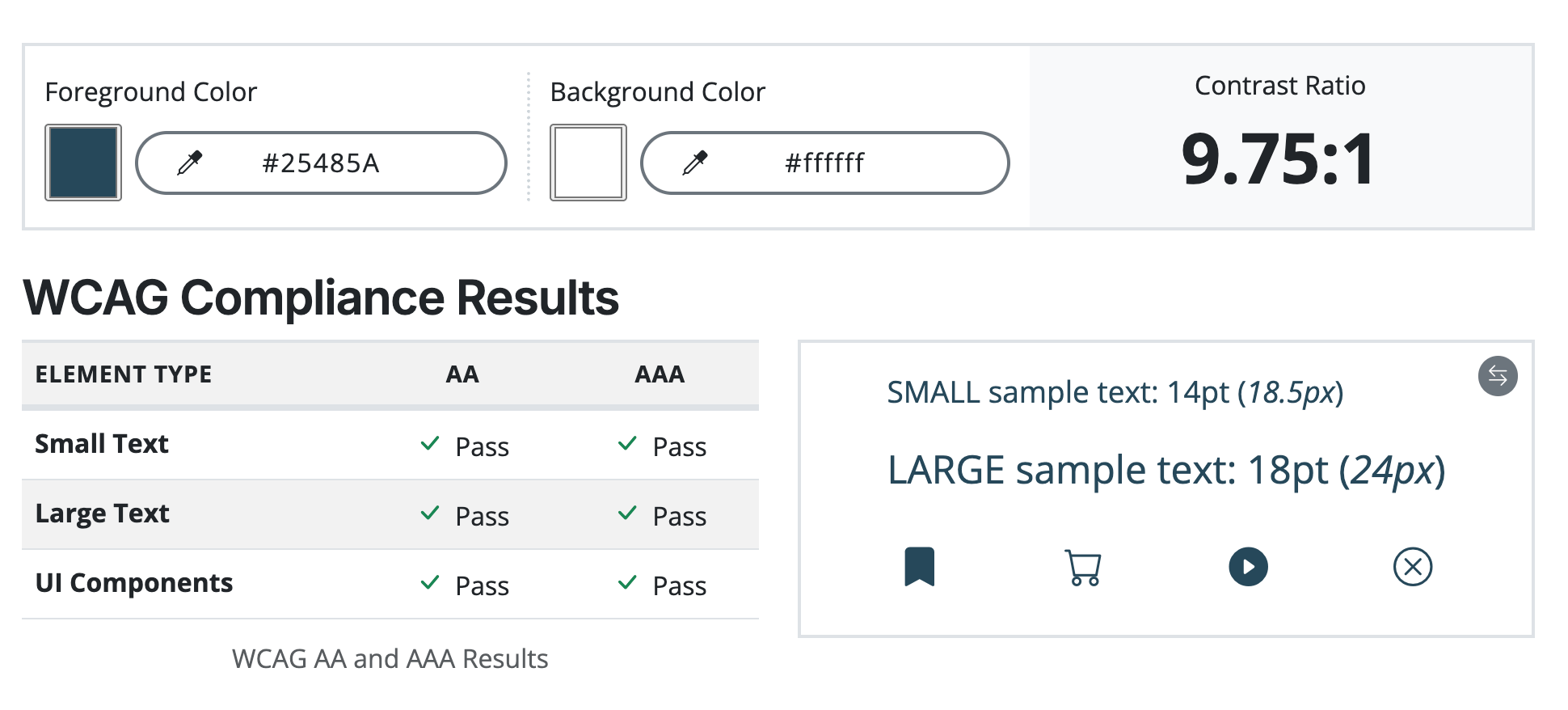
Use Smart Blue or Dark Smart Blue over light background

Avoid this
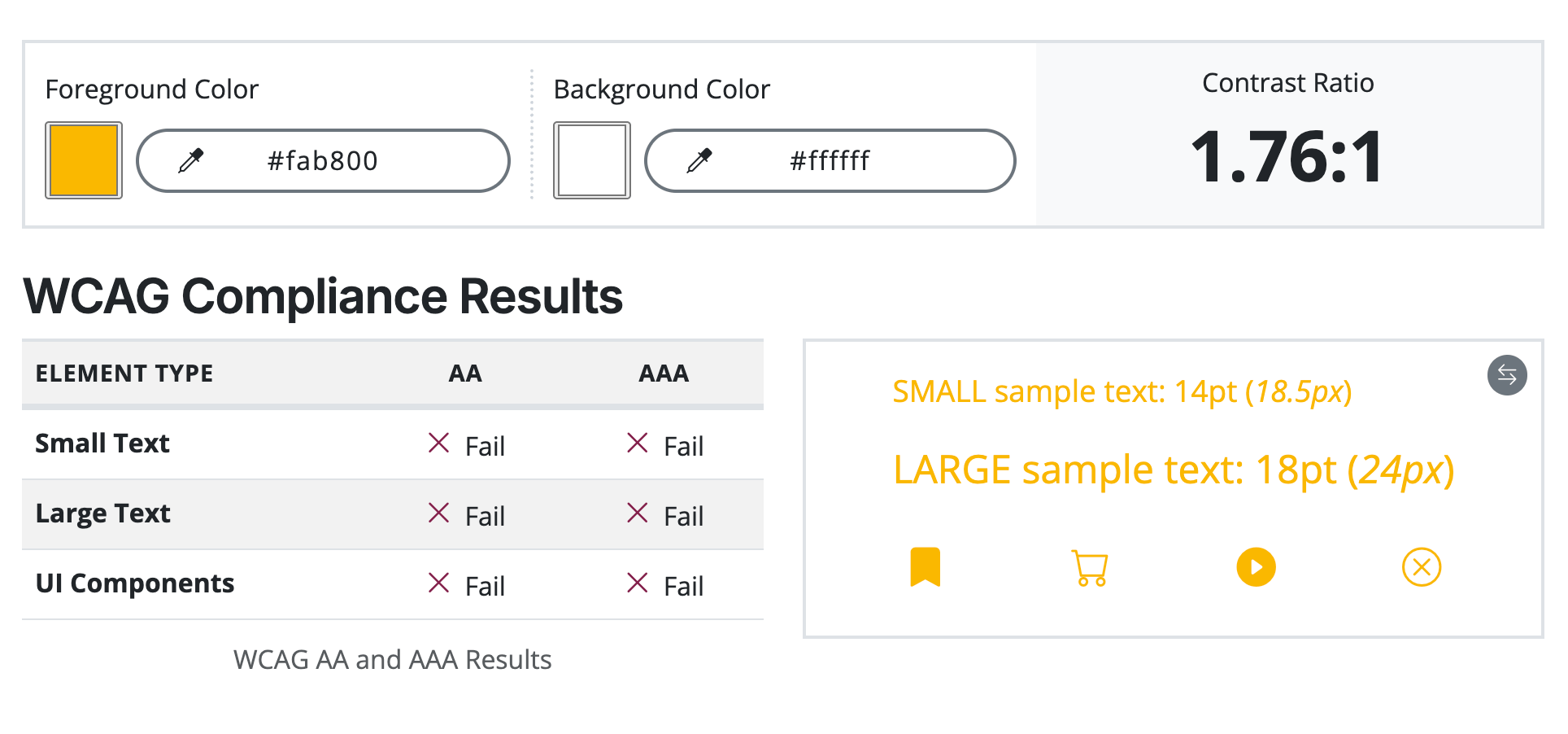
Do not use Yellow as text or icons as it fails contrasts requirements

Try this
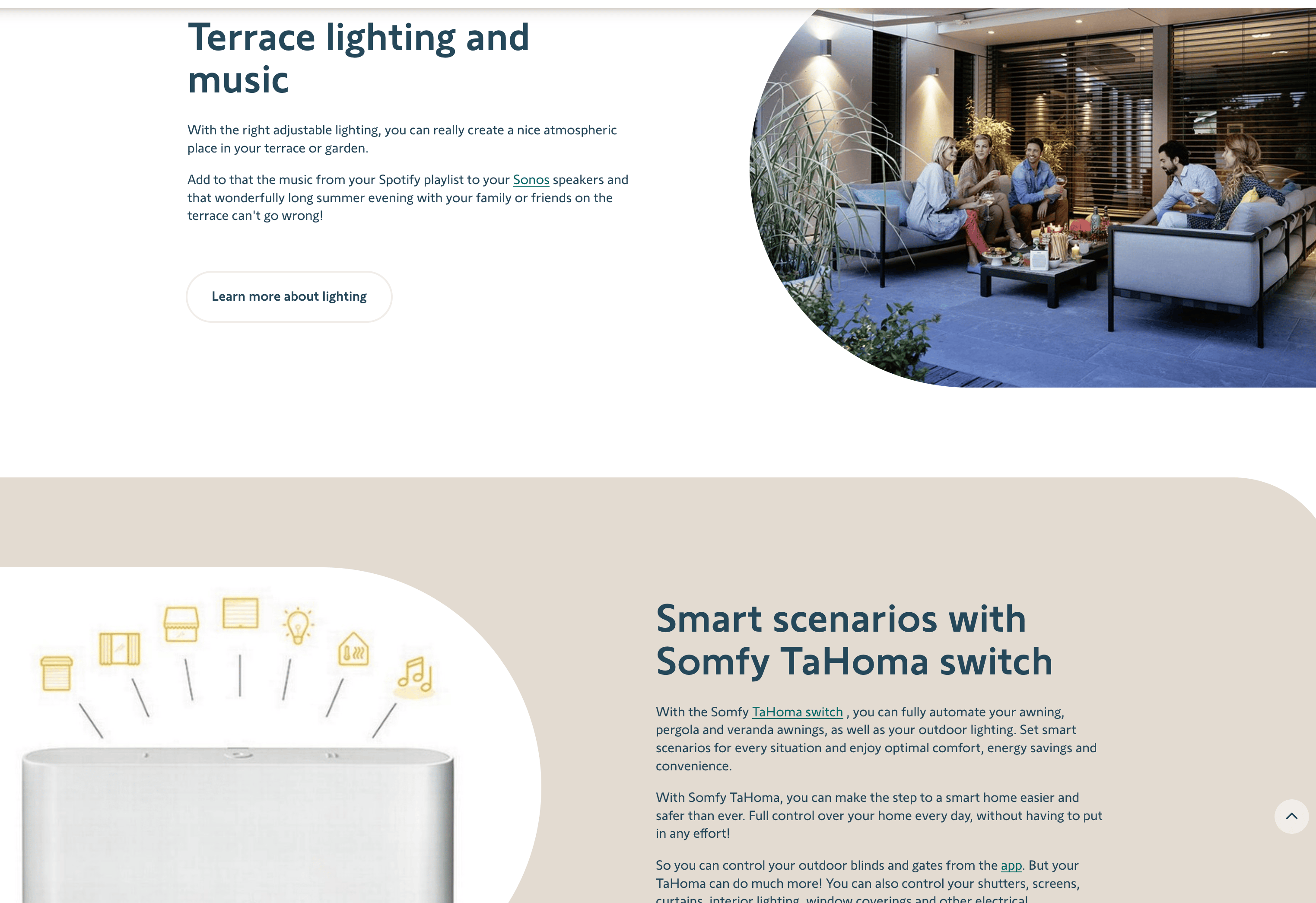
Stick to the standard Somfy palette to ensure accessibility and harmony

Avoid this

Somfy’s yellow isn’t accessible over white or beige background. Use bold and link color in this scenario

Don’t use the following combinations as they fail accessibility requirement :

Avoid this

Yellow over beige

White over yellow

Yellow over white

Updated 11 Feb 2026

© Somfy Group - Design Team

All Rights Reserved

Writing for the web

Accessibility

Content should be easy to understand

Words have power, but only if they’re understood. Some users may be cognitively impaired from a temporary situation or permanent.

Few tips to make your content easier to read:

  • Short sentences
  • Clear structure
  • Words everyone understands (also avoid jargon)
  • Left align text only

If content requires reading skills above lower secondary education (around 9th grade), to help with understanding provide: [1]

  • A simpler version
  • A summary
  • A visual aid

Text color

Use default text style options when available as it represents Somfy’s Design official sets of colors. Respect ‘AA’ accessibility standards at minimum.


Possible text colors (common for B2C and B2B):

Smart Blue

#

25485A

Text colors

Dark Smart Blue

#

1E3A48

Usage

Example

Exemple

Exemple

Links

#

016B65

Exemple

Success

#

3F7E71

Exemple

Alert

#

BB2D46

Exemple

Light Smart Blue

#

667983

Exemple

Normal text for B2C

Normal text for B2B

Text links

Success color

Error color and Sales color

White

#

FFFFFF

Seconday text

Alternating colors

Exemple

Checking contrast

As Somfy is legally required to be compliant with the “AA” accessibility standard, it is important to check the contrast when using a custom text and background color combinations.

According to WCAG 2.0 Level AA guidelines:

  • The contrast ratio must be at least 4.5:1 for normal text.
  • For large text, the minimum contrast ratio is 3:1.
  • A higher contrast ratio is always preferred for better accessibility.


Use the online tool linked below to verify your color combinations. Simply input a foreground and background color, and ensure that the results meet the requirements in the AA column.

Accessibility checking tool ( https://accessibleweb.com/color-contrast-checker/ )

Try this

Use Smart Blue or Dark Smart Blue over light background

Avoid this

Do not use Yellow as text or icons as it fails contrasts requirements

Try this

Stick to the standard Somfy palette to ensure accessibility and harmony

Avoid this

Somfy’s yellow isn’t accessible over white or beige background. Use bold and link color in this scenario

Don’t use the following combinations as they fail accessibility requirement :

Avoid this

Yellow over beige

White over yellow

Yellow over white

Updated 11 Feb 2026